

Zoho MCP: connect your Zoho data to AI
Connect Claude, ChatGPT, Gemini, and other AI assistants to your Zoho data so they can read records, run reports, and take action on your behalf.
What is MCP?
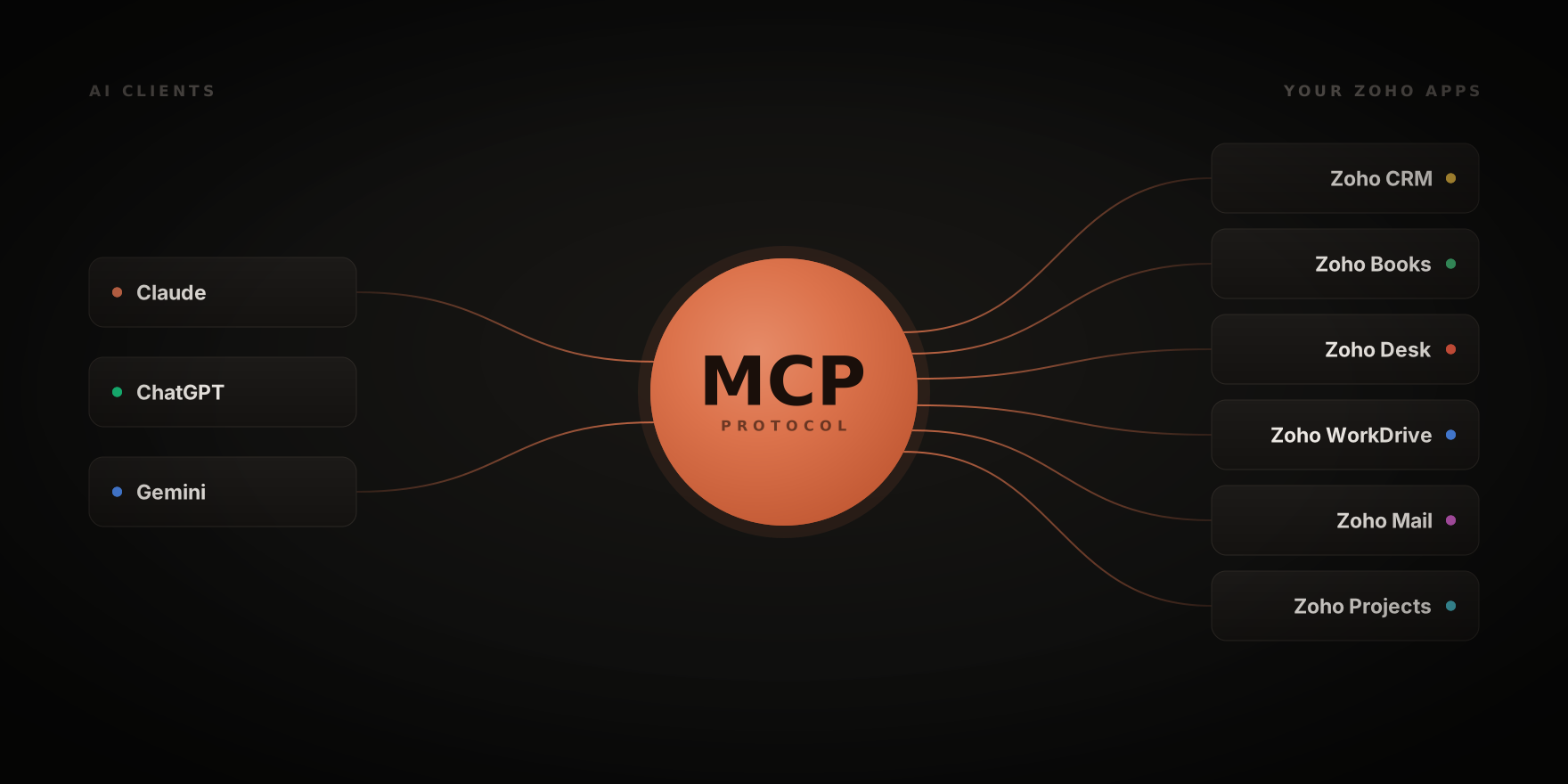
MCP (Model Context Protocol) is an open standard that lets AI assistants talk to your business software. Before MCP, getting an AI to work with your Zoho data meant copy-pasting into a chat window or building custom integrations. MCP is a shared language that AI clients (like Claude) and software (like Zoho) both speak, so they can connect with a single URL instead of custom code.
Anthropic released MCP in late 2024. Most major AI vendors adopted it during 2025. Zoho rolled out its own MCP service in mid-2025 and now exposes most of the major Zoho apps through it.
Which AI tools work with Zoho MCP?
The protocol is open, so any AI client that speaks MCP can connect. The three you've probably heard of:
Claude. Native MCP support across Claude.ai, Claude Desktop, and the mobile apps. For a handful of Zoho apps (Projects, Books, CRM, Desk, and Analytics), Claude has the connector pre-built in its directory. For everything else, you set up a custom connector using a URL from the Zoho MCP console. No code. Claude Pro, Team, or higher is required.
ChatGPT. Supports MCP through what OpenAI now calls "apps" (renamed from "connectors" in December 2025). Full read and write MCP support requires the Business, Enterprise, or Edu plan, plus enabling Developer Mode in the workspace. Consumer plans have a more limited subset.
Gemini. Mixed picture. Gemini Enterprise supports custom MCP servers. Gemini CLI (Google's developer tool) supports MCP. The consumer Gemini chat app does not currently offer general MCP connector support the way Claude does.
Using a different provider? Provider-specific setup guides for ChatGPT and Gemini are coming. For now, the setup walkthrough below uses Claude as the example, but the Zoho-side steps are the same.
What you can do once it's connected
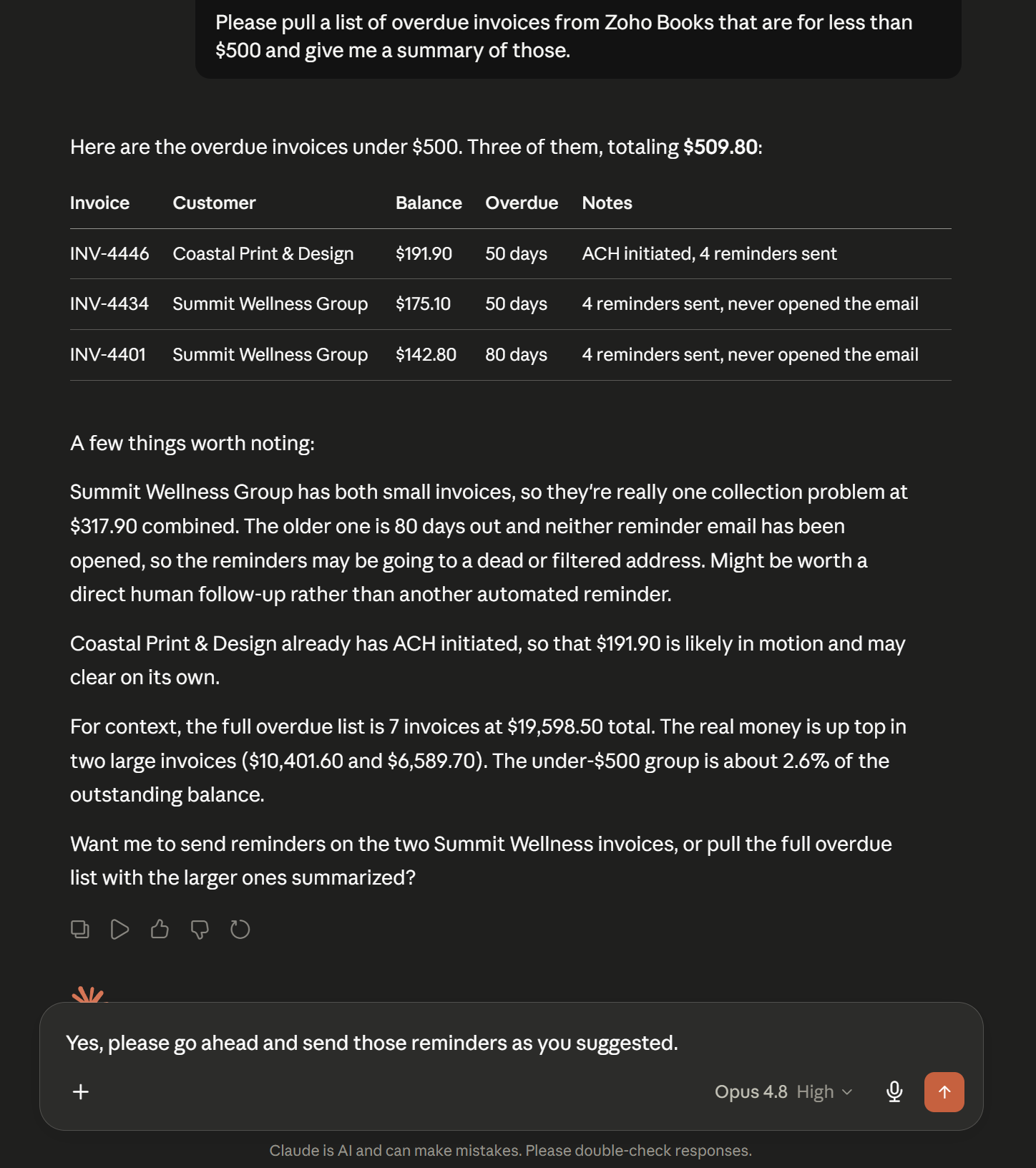
Once your AI is connected to Zoho via MCP, you can ask it things like:
- Show me deals in CRM that haven't been updated in 30 days.
- Summarize the last week of support tickets in Desk by category.
- Create an invoice in Books for [customer] for [amount].
- What's in the WorkDrive folder for [project] and what was the last thing modified?
- Look at this contact in CRM and draft a follow-up email.
The Zoho apps available through MCP cover most of Zoho One: CRM, Books, Desk, Mail, Calendar, Cliq, Projects, WorkDrive, Analytics, Billing, Assist, Payments, and others. You pick which apps and which specific actions the AI can use when you configure the server.
Worth understanding upfront: when MCP is connected, the AI is acting on your behalf with your permissions. If you can see it in Zoho, the AI can read it. If you can edit it, the AI can edit it. That's the point, and that's also the thing to be careful with.
How to set it up
There are two paths.
Path 1: Use a pre-built Zoho connector in Claude
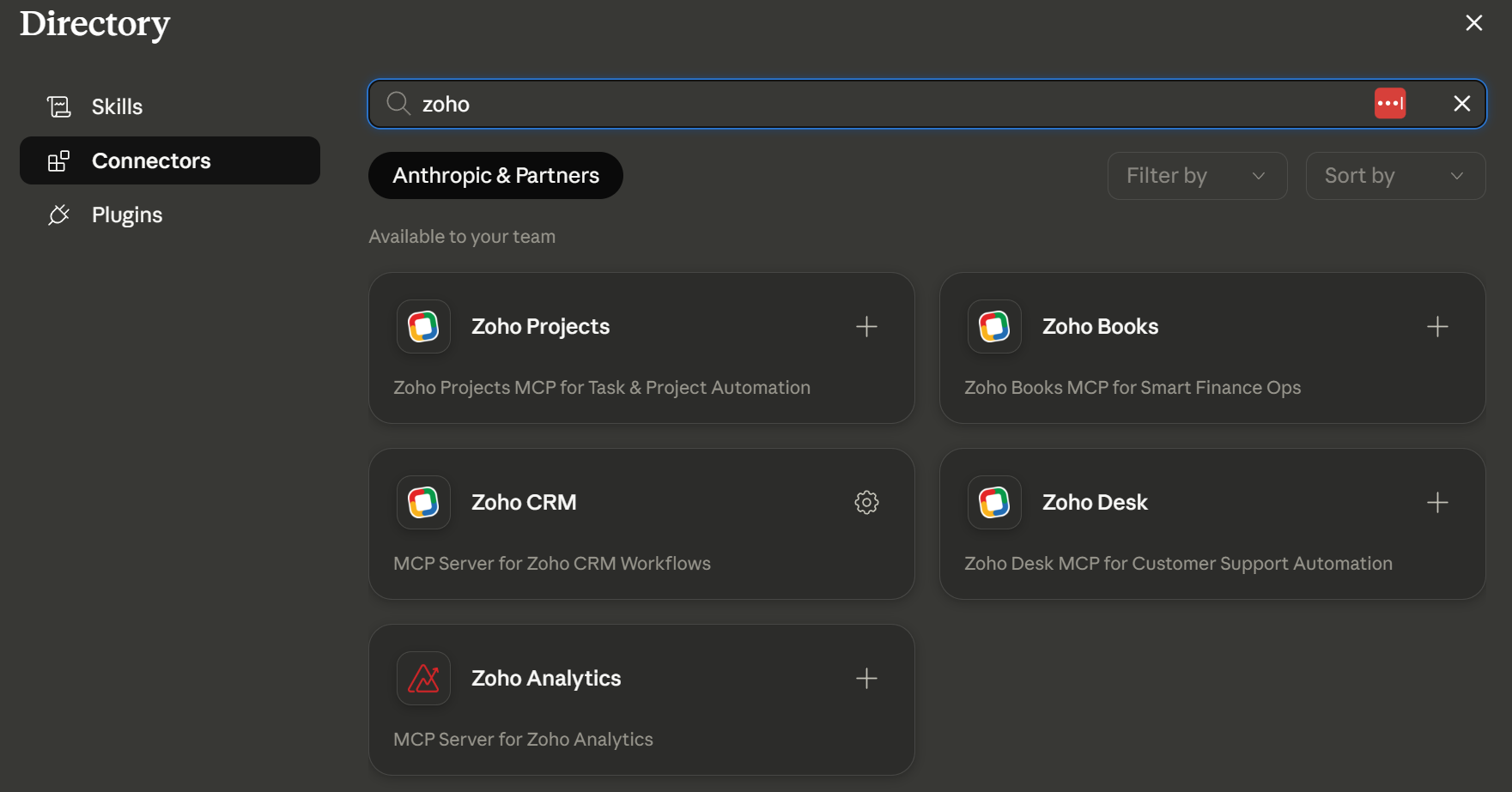
For Zoho Projects, Books, CRM, Desk, and Analytics, Claude has the connector pre-built. This is the fastest way to try it.
- In Claude.ai, click your profile in the bottom left, then Settings.
- Select Connectors in the sidebar.
- Click Browse connectors, search for your Zoho app (e.g., "Zoho Books").
- Click Connect and authorize through the OAuth flow.
The connector is now active. Tools are available in the chat by clicking Search and tools in the chat input.
The trade-off: pre-built connectors expose a curated set of actions. If you need more, use Path 2.
Path 2: Custom Zoho MCP server (works with any Zoho app)
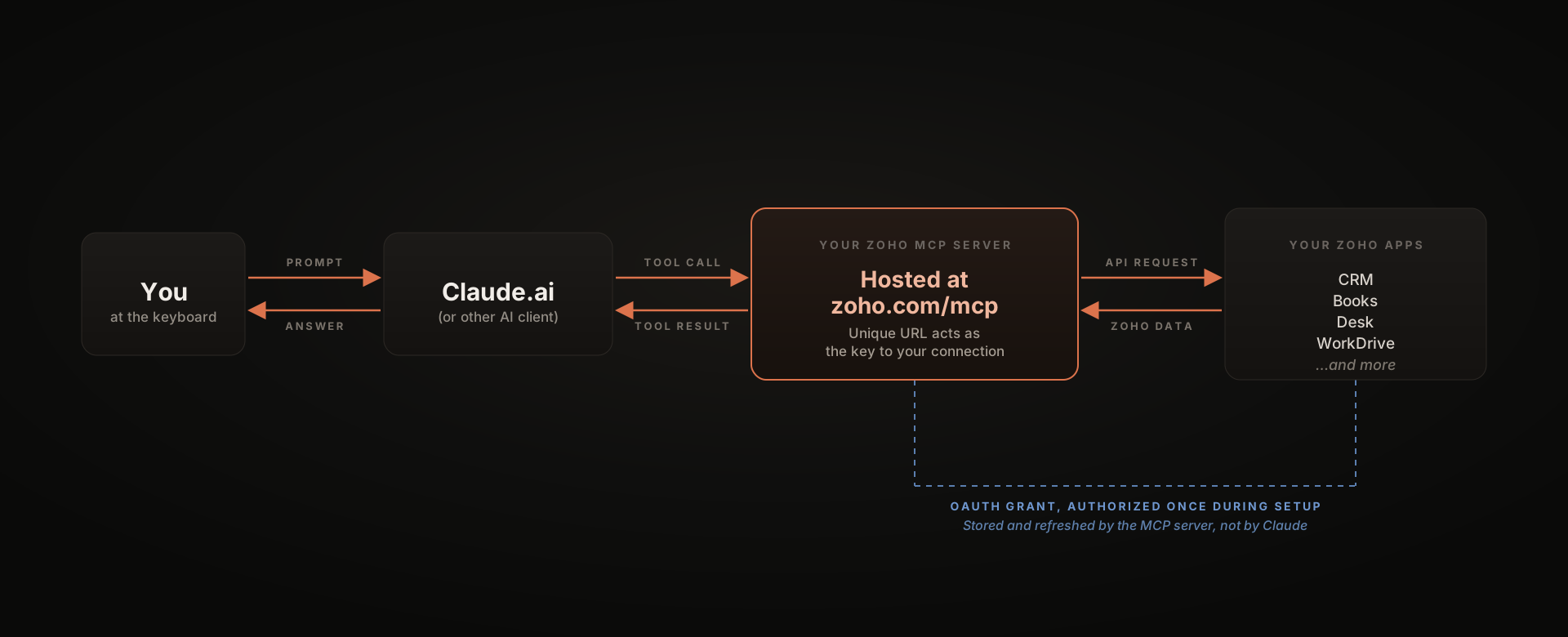
This is the standard setup, gives you full control, and works for any Zoho app that supports MCP.
- Go to zoho.com/mcp and sign in with your Zoho admin account.
- Click Create MCP server, give it a name (e.g., "MyCo-CRM-Server").
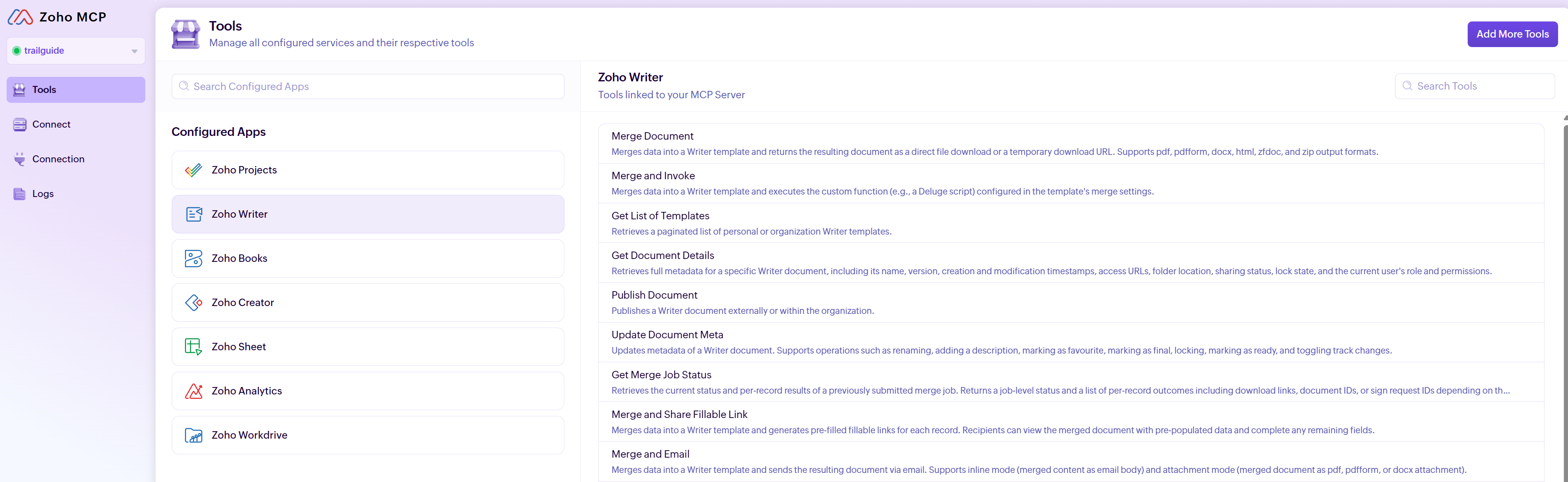
- Go to Tools, click Add Tools, search for the Zoho app you want, and pick the specific tools to expose.
- Go to Connect and copy the MCP URL generated for your server. Treat this URL like a password.
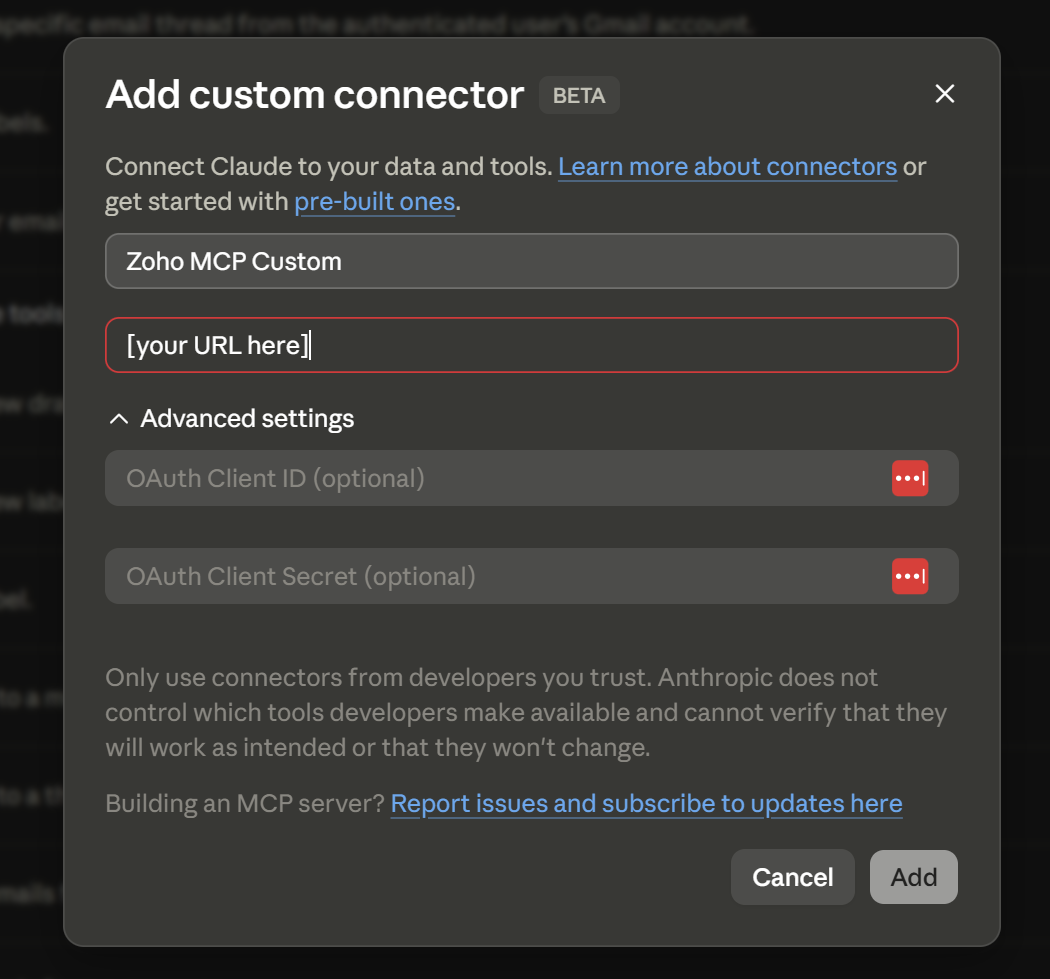
- In Claude.ai, go to Settings → Connectors → Add Custom Connector.
- Name it (e.g., "Zoho CRM"), paste the MCP URL, click Add.
- Click Connect to authorize. Review the OAuth permissions and click Allow.
The server is live. Open a new chat, click Search and tools in the input area, and your Zoho MCP connection will be in the list.
Rather have us set it up? We'll get your Zoho MCP server connected to Claude and the right tools scoped on a free 15-minute call.
Things to keep in mind
A few things worth understanding before you start asking AI to do things in your live Zoho data.
Permissions match your Zoho user. The AI inherits whatever access your Zoho account has. If you're a CRM admin, the AI can do admin things. If you're scoped to a single module, the AI is scoped the same way.
Write actions are real. When you ask Claude to "create an invoice for ABC Corp," it actually creates the invoice. There's no preview or dry-run by default. Start with read-only tools while you're learning the behavior, then add write tools once you trust the workflow.
Edition gates are on the AI side, not Zoho's. Zoho MCP is included at no extra cost with your Zoho plan. The catch is on the AI client: Claude Pro or Team is required for custom connectors, and ChatGPT's full MCP support requires Business or Enterprise. Most people running into "this doesn't work" are on a free tier that doesn't include custom connectors.
The MCP URL is sensitive. Anyone with the URL plus the OAuth grant can connect to your server. Don't paste the URL in shared documents or group chats. Revoke from the Zoho MCP console if you suspect it's leaked.
Test in a sandbox first if you can. For CRM and Books especially, spin up a developer or sandbox org and run your initial prompts there before pointing the AI at production data.
When MCP isn't the right tool
MCP is great for interactive work where you're at the keyboard with the AI. It's not the right tool for everything.
You want it to run unattended on a schedule. Use Zoho Flow or a Deluge function. MCP requires a human in the loop driving the conversation.
You need predictable, deterministic behavior. If the operation has to do exactly the same thing every time with no variation, it should be coded, not prompted. AI is good at flexibility, less good at "every Thursday at 2pm, do exactly X."
The data is write-sensitive. Financial close, payroll, anything where a wrong write has real consequences. The technology works, but the workflow design needs much more care, and a deterministic backend integration is usually safer.
For most of these cases, MCP can still help with the human-driven parts (research, drafting, exploration) while a Flow or Deluge function handles the unattended automation.