

Zia in Deluge: add AI to your Zoho Creator apps
Call AI from inside a Deluge function to summarize, extract, generate, or analyze. Available in Zoho Creator, with your choice of model.
What is the Zia task?
Zia is Zoho's AI brand. You've probably seen it surface across Zoho apps as recommendations, predictions, and built-in suggestions. The Zia task is the developer-facing version: a Deluge function that lets a workflow call a large language model directly. You write a prompt, optionally attach a file or context, and get back text you can use in the rest of your Deluge function.
The task uses Zoho's own GenAI model by default, and can be switched to OpenAI, Google's Gemini, or Anthropic's Claude depending on what your account is configured for. The Deluge syntax stays the same regardless of which model is doing the work.
One thing to know up front: the Zia task is currently available only in Zoho Creator. Not CRM, not Books, not Desk. So this is specifically about adding AI inside Creator apps.
What you can actually do with it
The use cases are where it gets interesting. Common patterns we see in real engagements:
- Document extraction. Send an invoice image to the AI and pull out the invoice number, line items, and totals. Save them into Creator form fields without manual data entry.
- Summarization. Take a long block of customer feedback, meeting notes, or a PDF, and get back a concise summary or list of key points.
- Generation. Generate a follow-up email, a personalized reply, or a draft document based on data in a record.
- Classification. Tag an incoming record by category, sentiment, or priority based on its content.
- Structured output. Ask for a specific format (a list, a JSON-style key/value response) and use it in downstream Deluge logic.
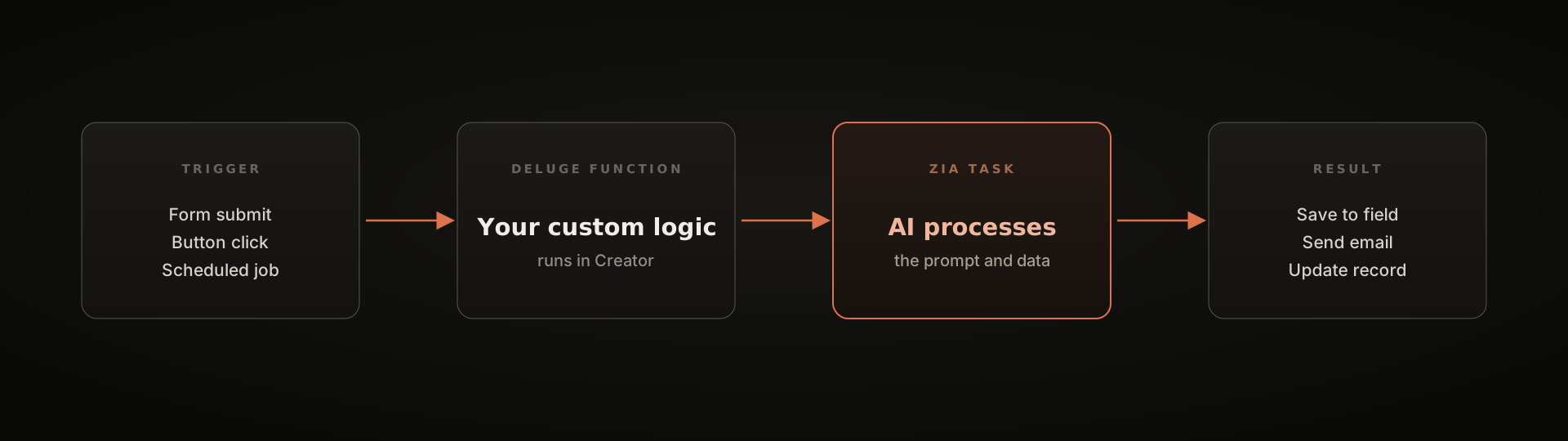
The common pattern: a workflow runs (form submitted, button clicked, scheduled job), the Zia task does the AI part, and the result feeds back into your Creator app. The end user doesn't have to know AI is involved. They just see the app behave smarter.
What it looks like in code
The Deluge syntax is short. Here's a real example from Zoho's documentation that pulls an invoice file from WorkDrive and asks the AI to extract the details:
// Fetch the invoice file from WorkDrive
fileResponse = invokeUrl
[
    url : "https://download.zoho.com/v1/workdrive/download/[file_id]"
    type : GET
    connection : "zoho_workdrive_connection"
];
fileResponse.setFileName("invoice.jpg");

// Send to Zia with a clear instruction
invoice_details = Zia
[
    message : "Extract the content from this invoice and calculate the total due if the sales tax is 7%."
    files : fileResponse
    context : "You are an expert in invoices"
    parameters : {"temperature": 0.2}
];

info invoice_details;
A few things to understand without writing this yourself:
- message is the instruction. Plain English works. The clearer it is, the more reliable the output.
- files attaches a document, in this case the invoice image fetched from WorkDrive.
- context sets the AI's role. "You are an expert in invoices" tells the model to act like an invoice processor rather than a general assistant.
- parameters controls creativity.
temperature: 0.2means low creativity and more predictable output. Higher values produce more varied responses. For extraction work, you want it low.
The response comes back in invoice_details.data (the text the AI generated), with invoice_details.status telling you whether the call succeeded. You then use that text however you want: save to a field, send in an email, parse for downstream logic.
That's the whole pattern. Configure once, then point your developer at the next use case.
Things to know
A few real constraints worth understanding before designing around the Zia task.
Creator only, for now. The task is currently available only inside Zoho Creator. If your use case lives in CRM, Books, or Desk, the logic either moves into a Creator app or uses a different approach.
Model choice has trade-offs. Zoho's GenAI keeps the data inside your org and doesn't use it for training. External models (OpenAI, Gemini, Anthropic) share data with the vendor for processing. The vendor data policies vary. For anything regulated or sensitive, default to Zoho GenAI or read the vendor terms carefully before connecting.
Hard limits to plan around:
- Prompt size: up to 1,200,000 characters
- File size: 5MB per image
- Files per call: one image (PDF only with Google's model)
- Timeout: 40 seconds per call
- Throttling: 7 concurrent calls per user, 10 per organization
Setup is required. A Creator admin has to enable the Deluge Zia task before any function can use it. It's a one-time toggle under Operations, in the Zia card, after picking which model your account will use.
Zia, MCP, or Zoho Flow?
These get confused a lot, so it's worth being clear about when each one fits.
Zia task runs AI inside a Creator workflow you built. The user triggers a form or action, your Deluge function runs, and the AI step happens automatically as part of the flow. Best for event-driven work where AI is one step among several and runs without a human in the loop.
MCP lets a person interactively work with Zoho data through an AI assistant like Claude. The person drives, the AI responds, the data flows both ways. Best for research, exploration, and ad-hoc work where you want a human at the keyboard. (We have a separate guide on Zoho MCP if that's the path you're on.)
Zoho Flow is no-code automation between apps, with no AI involved by default. Best for moving data and triggering actions across systems without writing Deluge.
These are complementary, not competing. A real Zoho deployment often uses all three: Flow for cross-app automation, Zia tasks for AI inside specific Creator workflows, MCP when someone wants to ask questions of the system without leaving their AI assistant.